
The artificial intelligence era is here, and so is our first AI Assistant.
This release also brings Code Search and Version Control for IQL, supported in both the Form designer and the Rules manager.
Main features
Awen AI Assistant
We welcome our brand-new AI-powered assistant to the IS Tools platform: Awen. Take advantage of it for configuration support! For example, ask questions about how to make queries with IQL, explore features, get examples on functions, etc., only a click away (in the top bar above forms). 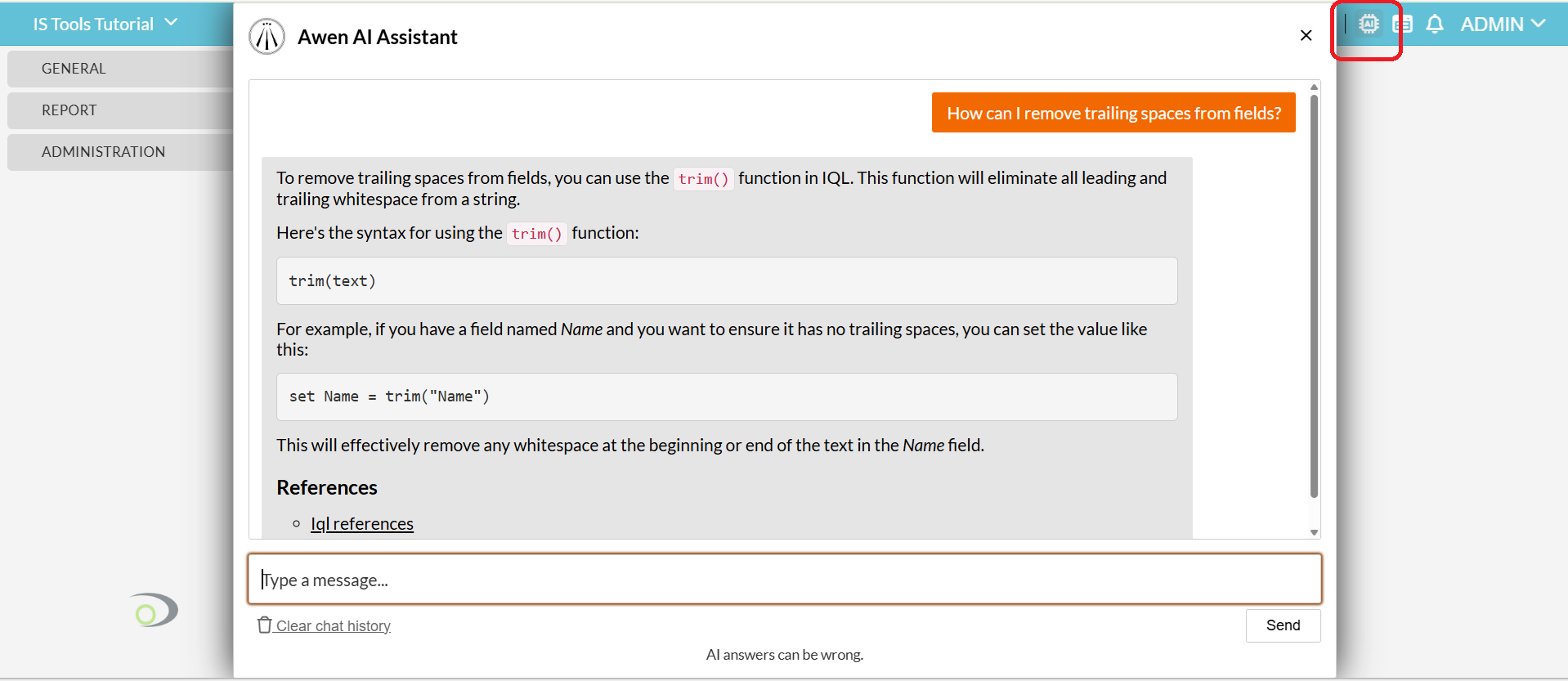
Enhanced Form designer
Take a look at the new functionality implemented in this essential form.
- A fresh layout with movable and expandable blocks, with adjustable size. Find the optimal screen space distribution for your setup!
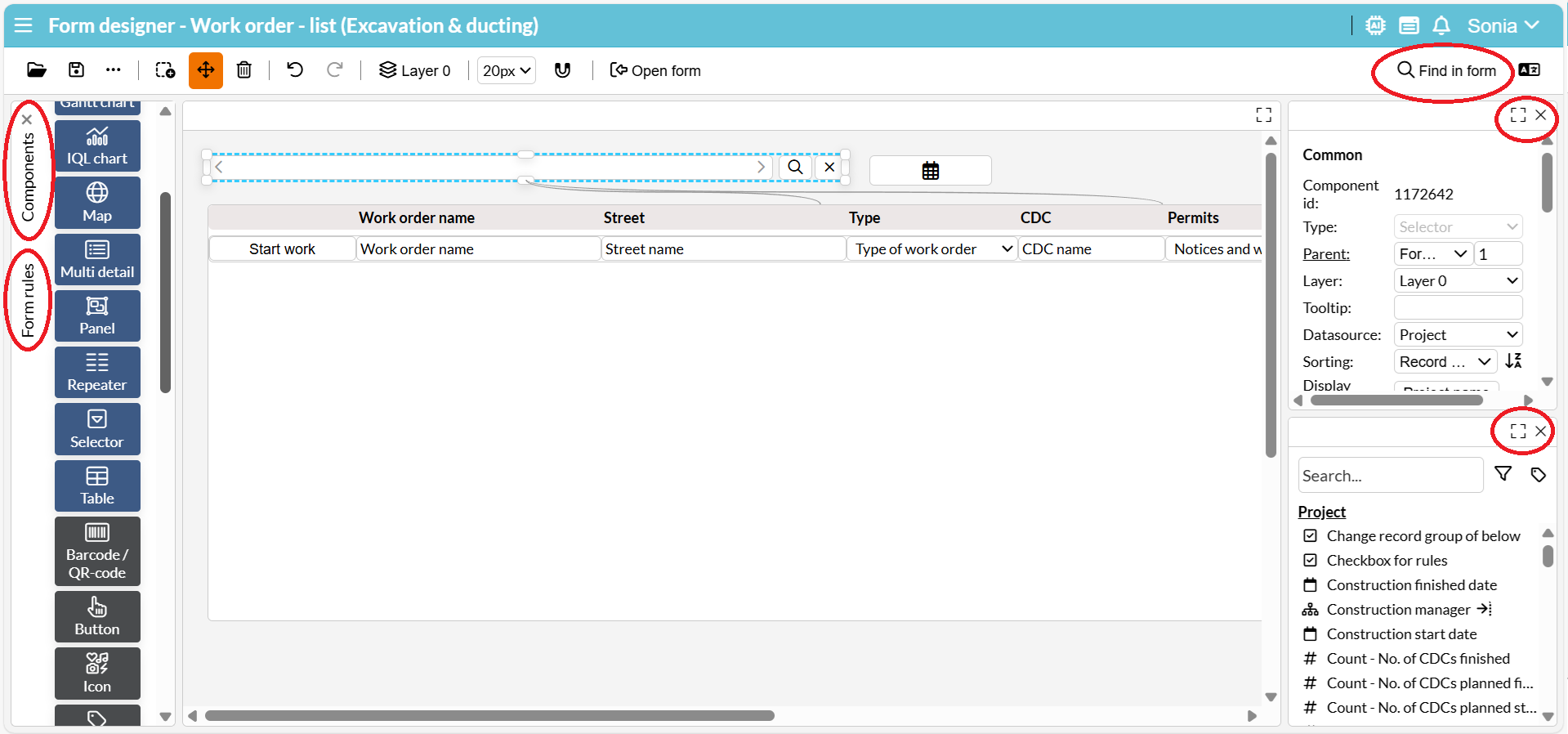
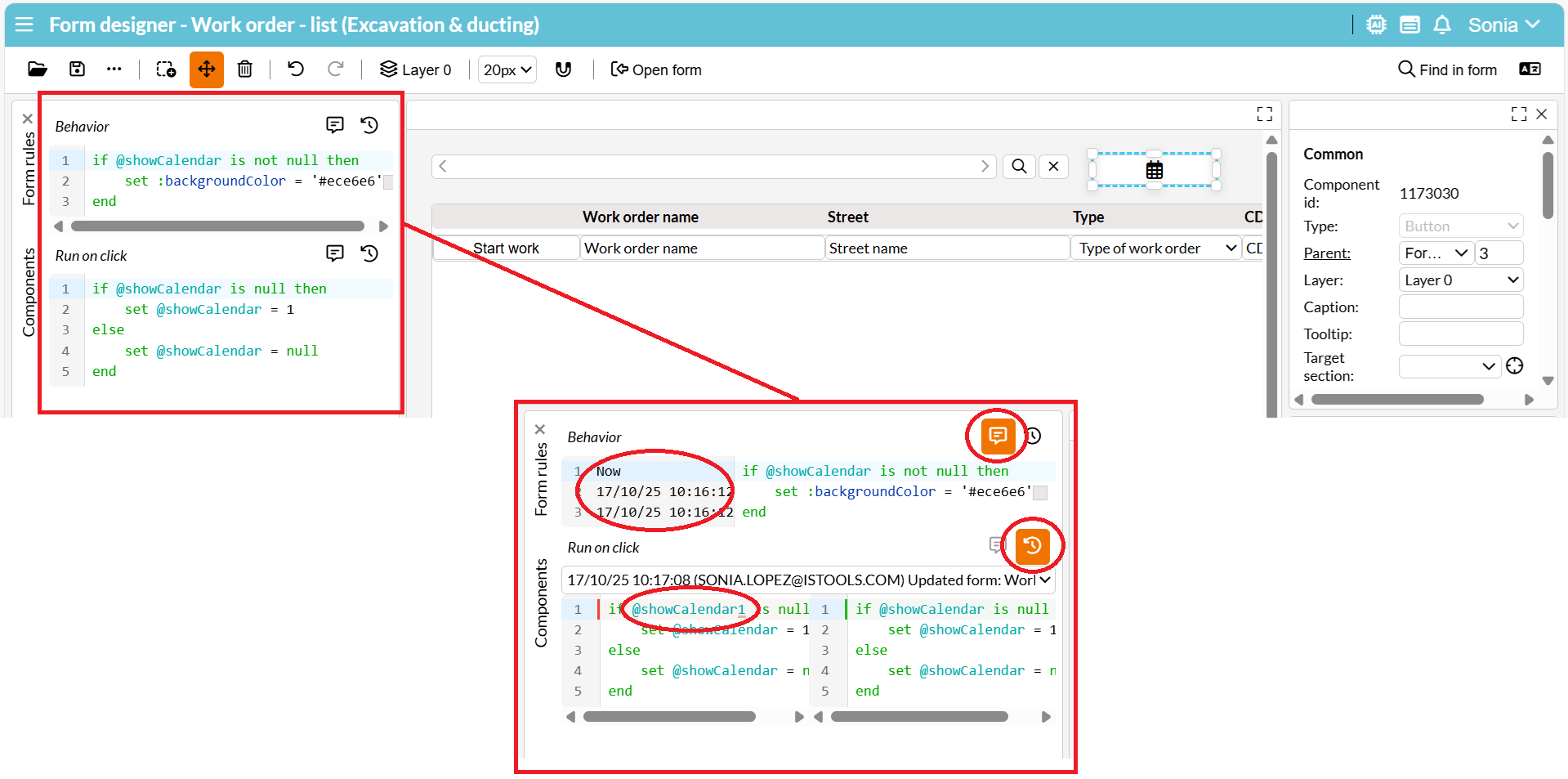
- All IQL editors are now grouped into a separate block called “Form rules” where code version and history are logged: each of them with tools to track when and what changes are made. Note that this block also allows you configure advanced filters, just as previously done via the “Filter: Configure:” property for fixed filters.
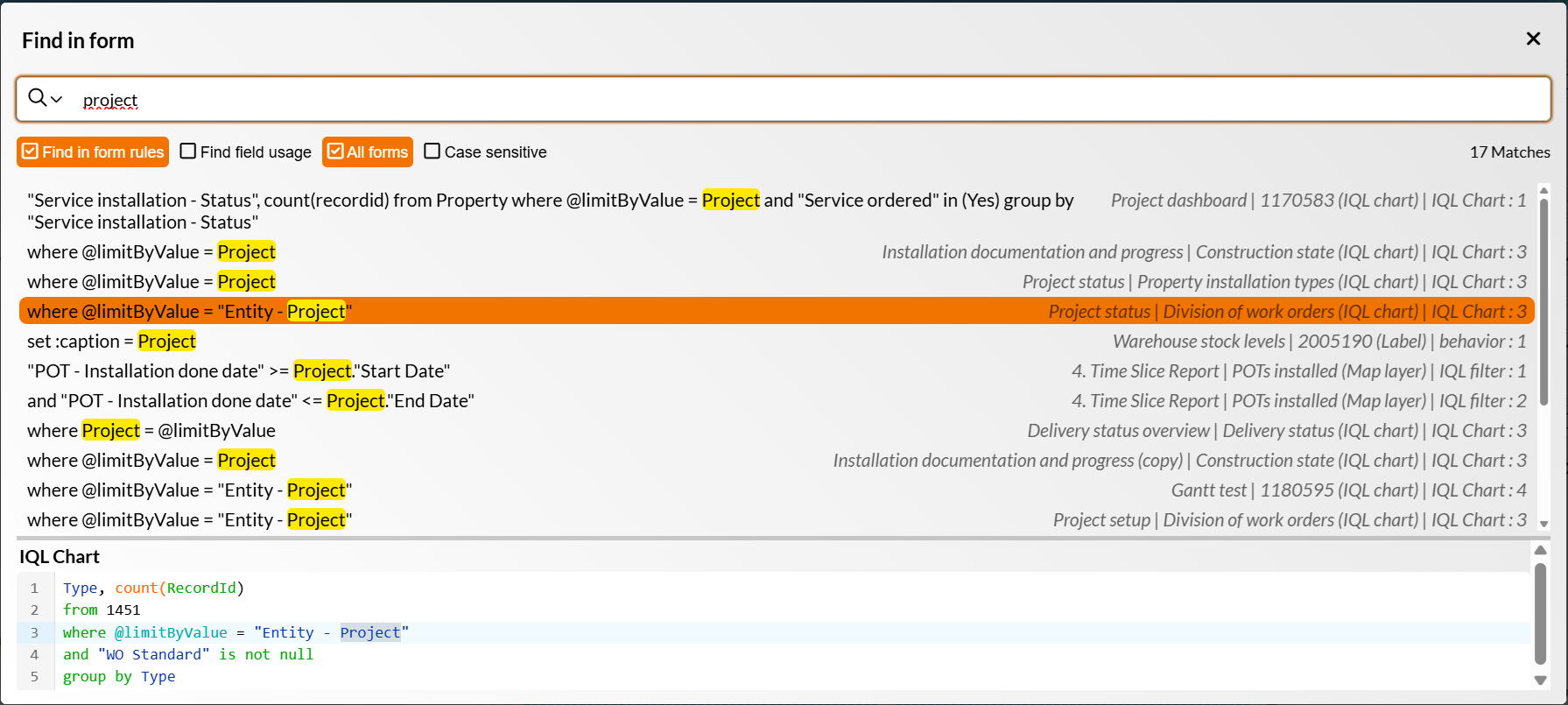
- Another new feature is the powerful “Find in form”, which allows you to search for fields, parameters, and variables across all your forms! This lets you quickly identify how and where configuration is set in workflows. Once a code query is found, double-click the entry to be taken directly to the form in question
- Code completion for parameters. To manually display predictive text in the IQL editor, tap Ctrl+Space on your keybord. To narrow the completion, you may type set @<ctrl+space> to show global parameters, or type let @<ctrl+space> to show local variables from the same form rule. Once you find the wished string, hit Enter to add it or click on it.
Improvements to Rules manager
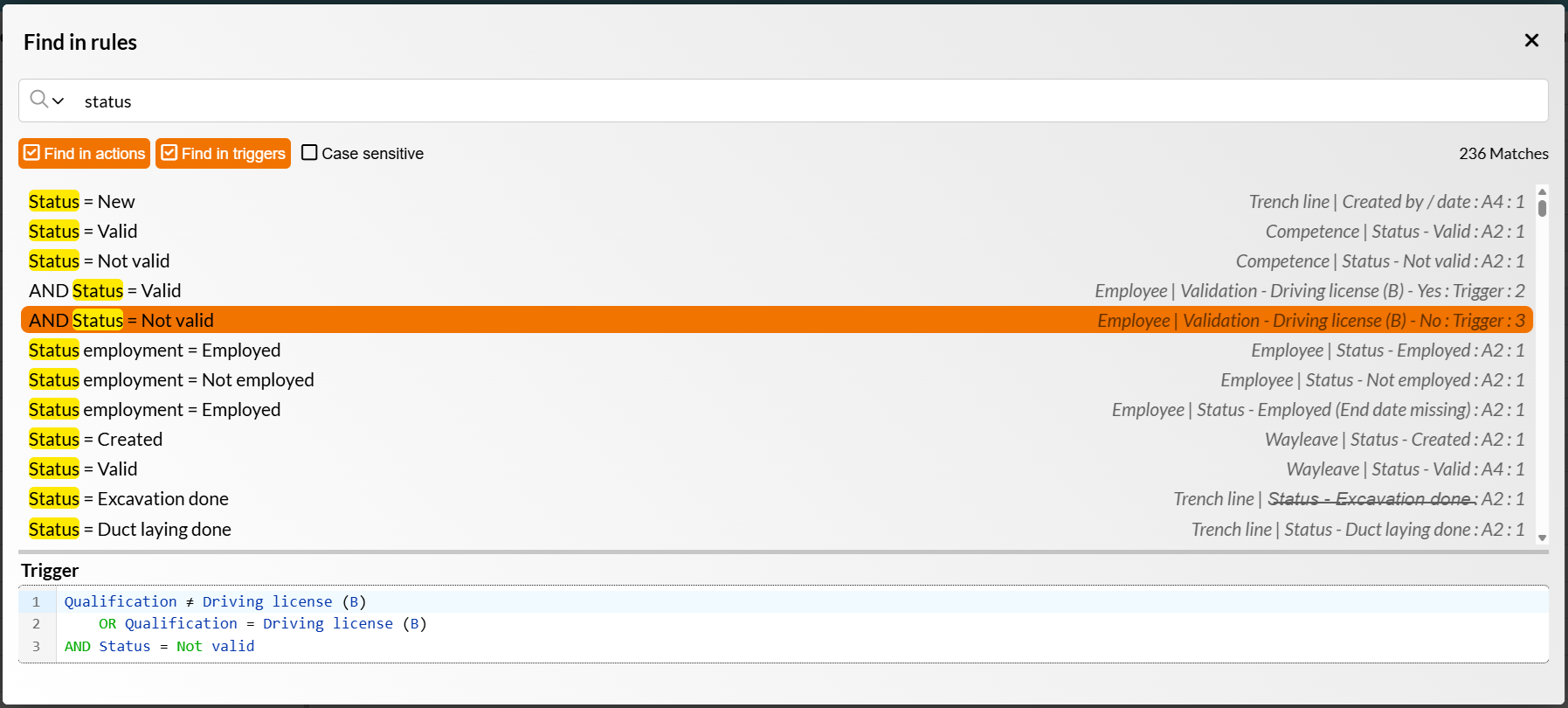
- The “Find in rules” feature (similar to “Find in form” described above), searches for fields and variables used within Rules manager, either as a trigger, an action, or both. Once again, you can double-click the resulting entry to be taken directly to the rule in question. This aims to provide a much more comprehensive overview of how fields will impact, or be impacted by, other rules. This means that administrators are no longer dependent on running Usage reports – a far more time consuming and tedious method.
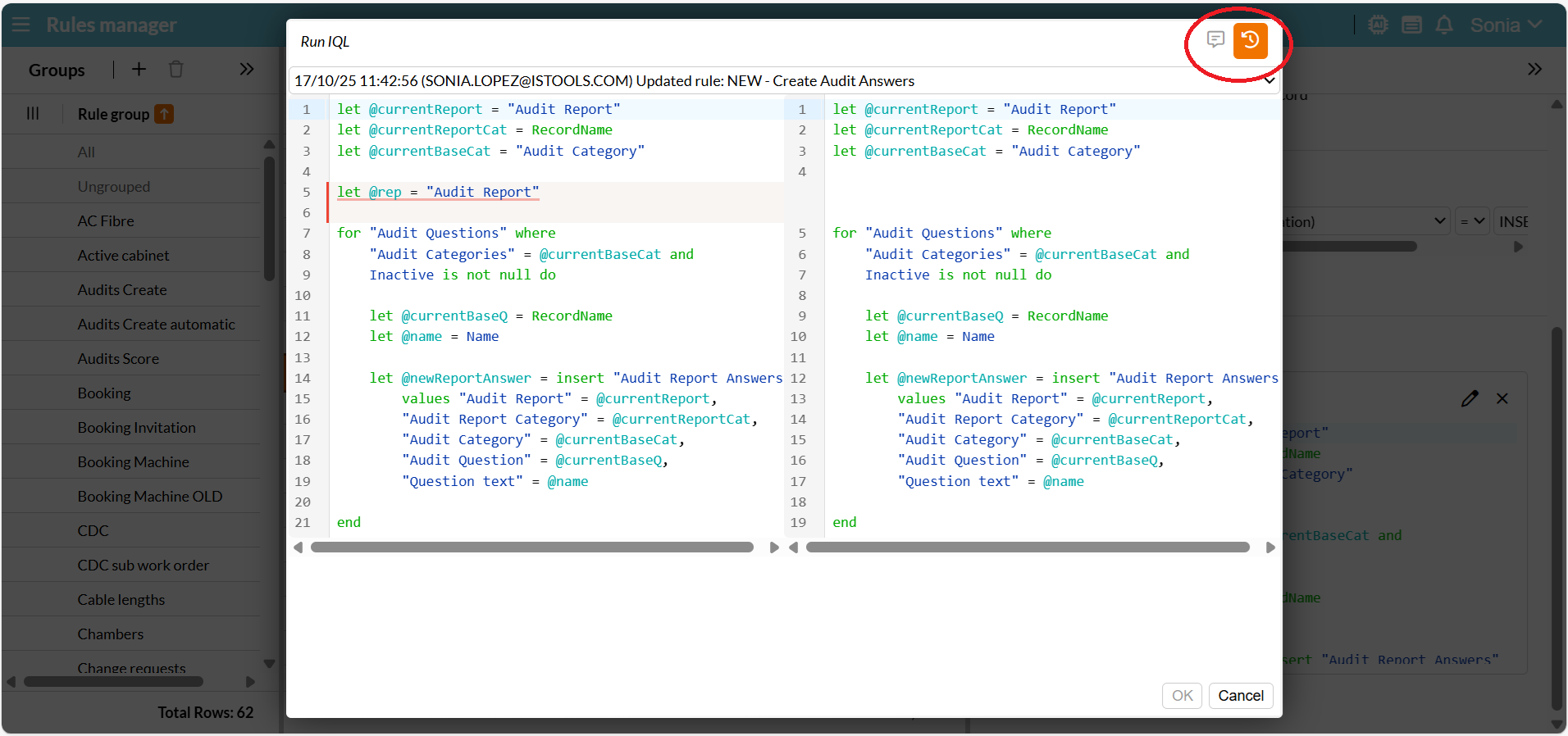
- Version and history handling is also available in the IQL editor for rules.
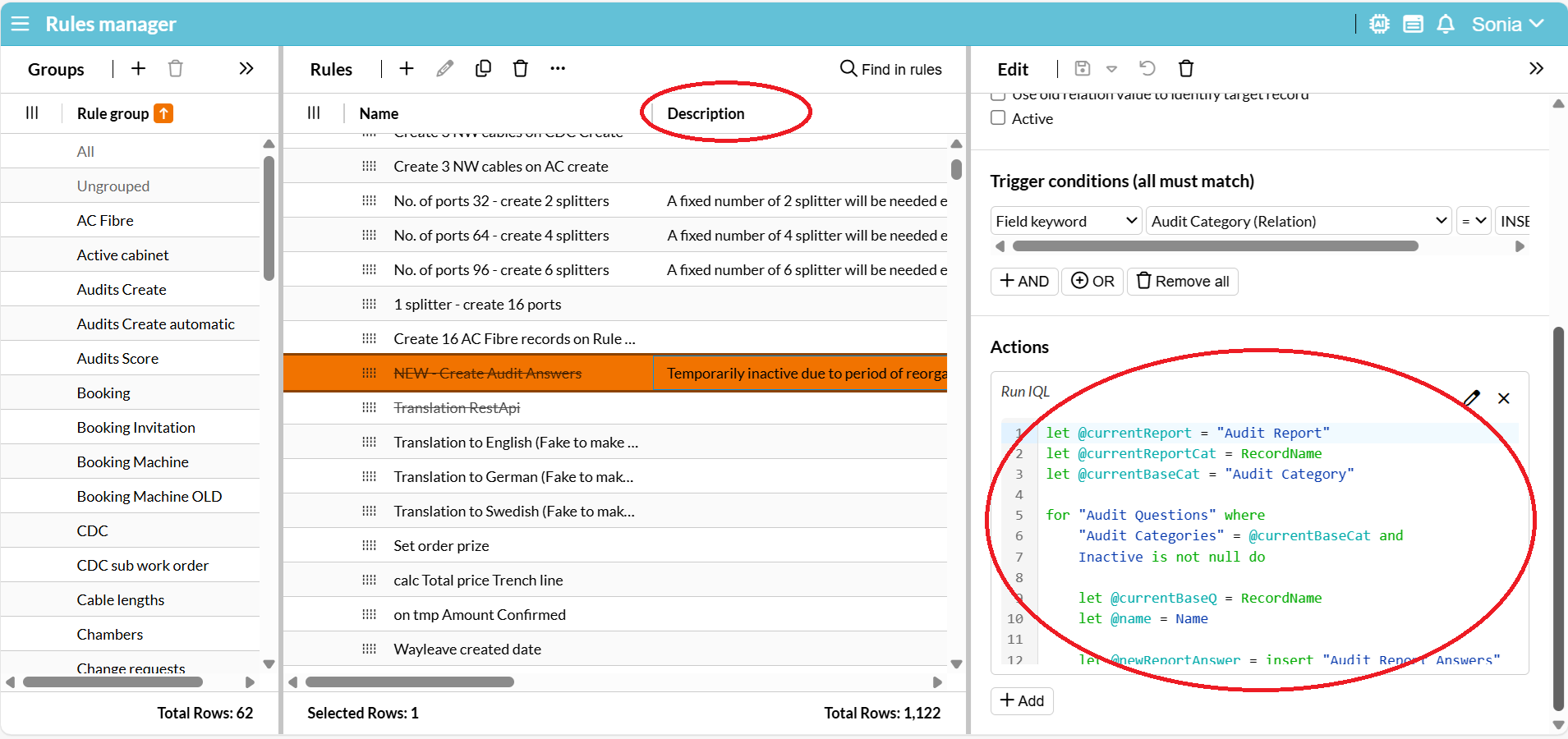
- We have improved the display of IQL in the Edit section, so you don’t need to open the editor to review the statements there in a snap. Furthermore, the “Description” property can be added as a column in this form, allowing rules to be filtered based on notes you type in the Edit section.
Improvements for end users
Table section
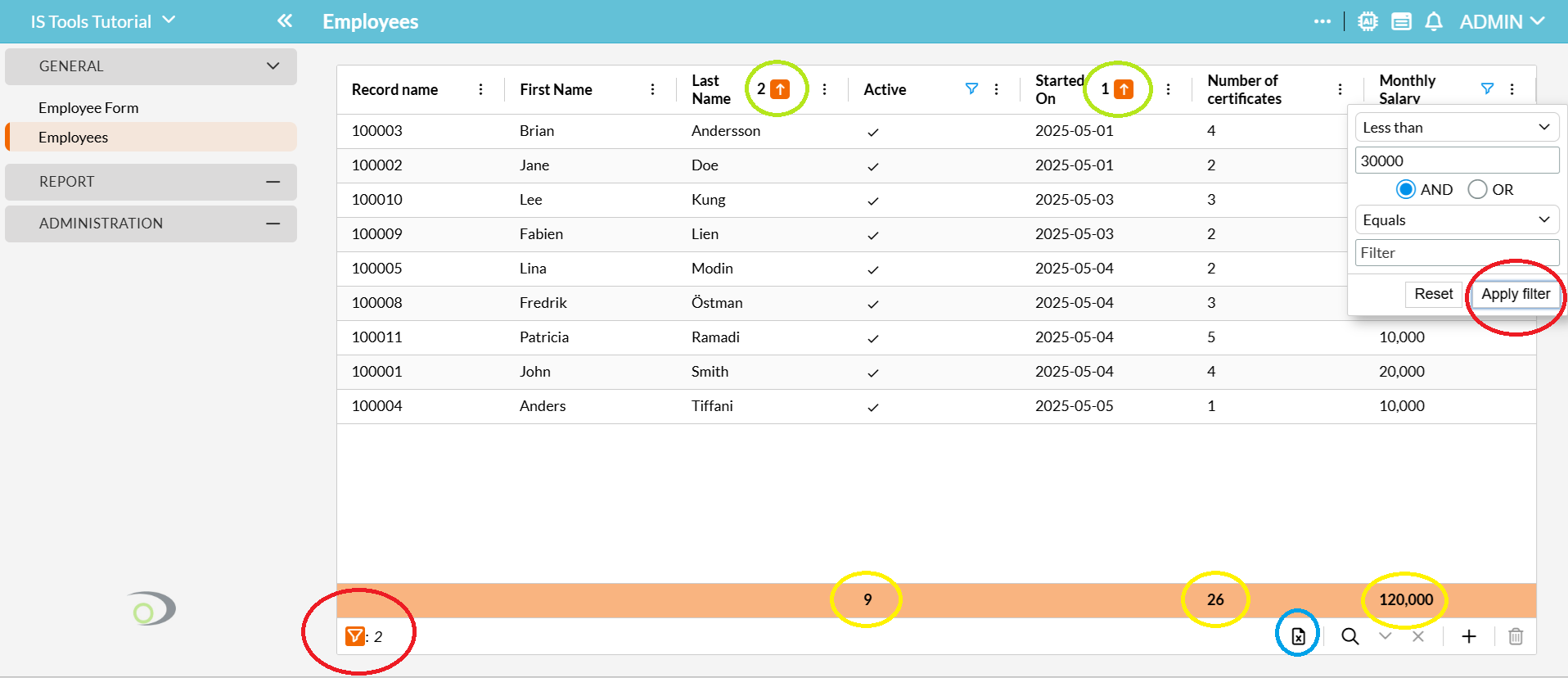
- Grand total row: Forget about adding extra fields to calculate totals from your Table section. Administrators now have the option to automatically add the total count, sum or average, per column (depending on field type); the result is displayed as a pinned row at the bottom of the section in bold text. The result is refreshed if a filter is applied.
- Filtering changes: The filter context menu now has an “Apply filter” button. To use it, just click or hit Enter once all your filter criteria have been set.
Additionally, the bottom left of the Table section now displays an icon indicating how many columns you have filtered (similar to the indication for hidden columns), providing a quick view of what your filtered data set contains. You can click on the icon to quickly remove all filters on columns at once.
Note that filters applied directly to columns will be automatically reset after reloading the form, while filters made with the Record filter will be cached in the browser until the user clears them.
- Multiple sorting: Sort multiple columns at once by holding down the Shift key while you click on the desired headings. For ease of use, the sorting order is displayed by numerical values to the left of the ascending/descending indicator.
- Quick Excel report’s clearer limitation: Prior to this release, users were unaware of how much data they could download with the Quick Excel report tool, where the data limit was determined by the browser’s header size. If exceeded, the message would inform only that the report could not be generated, not why.
For this release we have defined a maximum limit of 150 columns, which if exceed, is expressly stated in the error message. - Relation column’s Display field can look up Record name. Imagine copying a cell in Excel having “John Smith” in it, and paste it into a Table section’s column with Display field “Name” related to parent table, without needing its Record name. This is now possible, where the record name of the parent table will be automatically looked up via its Display field.
New authentication alternative
We have added support for Multi-Factor Authentication (MFA) using an Authenticator app, such as Microsoft Authenticator or Google Authenticator, to meet high-security classification requirements. This new method is available alongside the existing SMS-based 2FA and does not affect users who authenticate via SSO.
We recommend you to use the MFA with Authenticator app, instead of Authentication with SMS.
General filtering for strings in forms
Filters in Selector components, Relation fields and Table section columns containing strings along the application have been standardized so they can be used in a similar manner, typing the value and hitting Enter, without having the need to use asterisk, as they are set by default to the operator “contains”.
Filters saved in the Record filter will no longer display the suffix “Public”, which made long lists of filters look dense for repeating the same word along the items.
All possible records to be imported
Previously, Imports of type “Insert” would be aborted when attempting to create a duplicate record through rule actions, preventing any remaing rows from being inserted as records. In the new release, duplicate records are now “skipped” and the import continues with the remaining rows. Upon completion a warning is issued for any skipped records in the import log.
Default “Show same record in other form”
This setting, available at the top bar menu of application forms, will be applied by default for new applications and for existing applications after browsing data has been deleted. This should decrease the necessity of repetitive user input across different forms, and help avoid having to toggle the function every time the browser cache is cleared or a new browser is used.
Changes for IS Tools administrators
Form designer
- Target section in Form designer: Previously, components such as Buttons and Icons could be used to create records for the table selected as their “Target section”; however, certain fields would be interpreted as fields of the parent target instead of fields of the record being created/updated through the component’s IQL properties. This has been improved by having all fields consistently refer to the same record (i.e. not the parent record in the target section), and now works in the same way as the “Limited by” property.
If you happen to have this type of configuration where the Target is a different section than Parent (as displayed in the image below), be aware that adjustments might be needed.
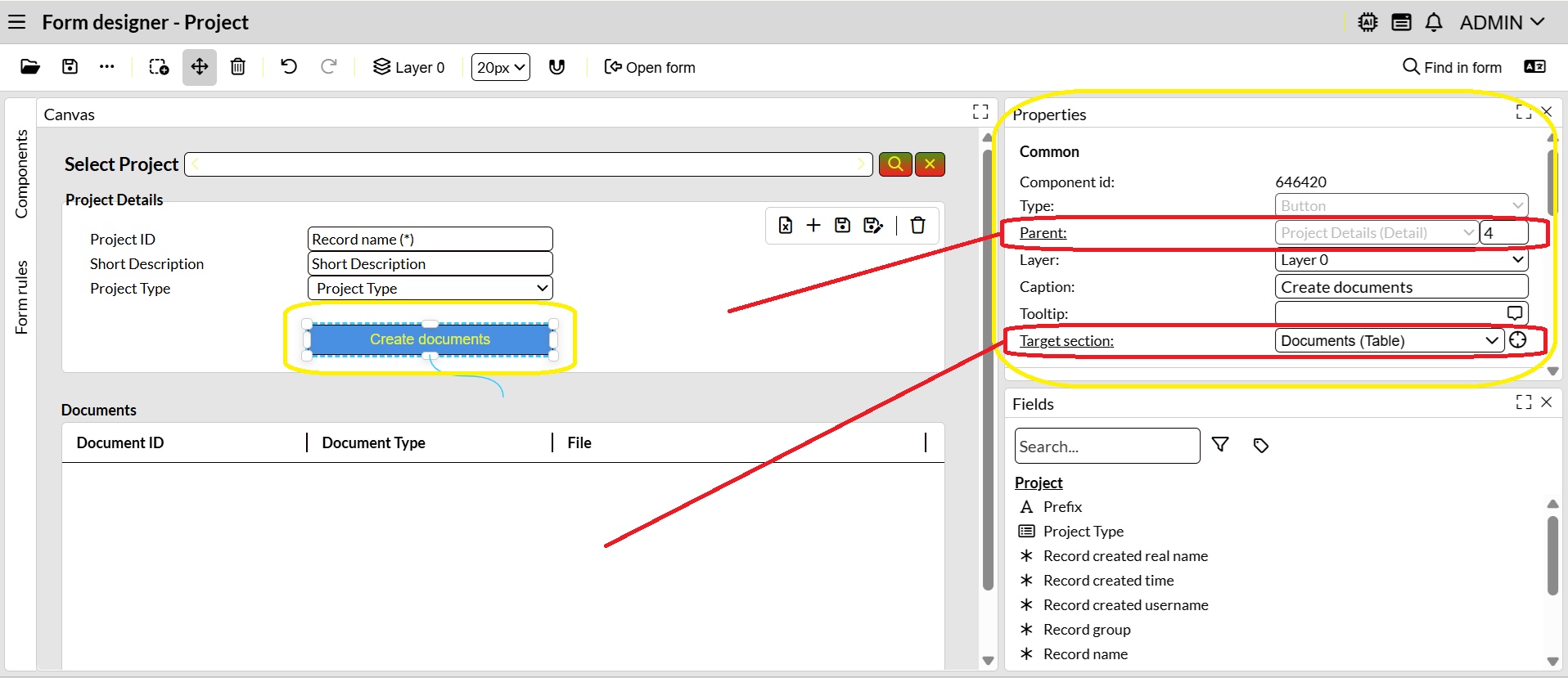
To quickly find these cases in your code, look for the statementuse_target_section_compatibility_modein our new tool “Find in form” with “All forms” checked, and read how to proceed here.
-
Record picker as filter box: There are cases where it would be ideal to use a Record picker as a filter box where users could click to select a record, instead of having to type it as text input, as is the case with the current Search box.
 This is now configurable in two different ways, made possible through updates to two components:
- Using the Record selector: hiding its Record filter and previous/next record arrows, as they are now independent component properties, to give it the aesthetic of a dropdown field.
- Using a Relation component: setting a Table and a variable as it’s Datasource. This will also provide the additional functionality of clearing the selection in cases where you don’t want to force filtering.
-
Record selector as read-only: This component can also be set as read-only through the use of IQL Behavior.
- Layers: When updating or reorganizing a form, the new Trash can icon (which appears next to empty layers) can be used to quickly delete them. You can also click-and-drag layers to reposition them. Furthermore, newly added layers will initially have an automatic name based on their position, e.g., Layer 2, which you can double-click to rename; if you keep the automatic one, be aware that the name will not change if it is repositioned.

All components in a selected Layer will be displayed together with their Parent component even if the latter one belongs to another Layer, which means that you don’t need to select multiple layers with Ctrl+click to find your parent components as we did before.
- Open form tool: The “Created date” and “Created by” fields can now be added as columns, which can be used either for filtering or to audit when and when and by whom a form was created.
- IQL Chart multiple sorting: Previously, it was only possible to apply the order by keyword to one field. With this release, you can now sort by multiple fields as needed. For example,
Responsible, Status, Total from Invoice
   group by Responsible, Status
   order by Responsible, Status, Total
Data model editor
- Field deletion: The task of removing a field (with the exception of “File” and “Drop-down”-type fields), no longer requires the initial deletion of all the data for that particular field. Instead, you will be required to type the name of the field in a warning window to perform the deletion. The Record update time will not be affected, but the delete action itself and the time of deletion will still be registered in the Activity log for audit reasons.
- Usage report: When looking for the usage of a field in Data model editor, the results displayed under the Reports section will link you directly to the Report wizard so you can review or edit the field.
Also, this tool now includes information regarding validations and style rules, with links to go directly to the Rules editor.
IQL
- New functions:
- call saveAll() – Applied to a Button or Icon component, this function mimics the behavior of the floating “Show save all button”, saving all changes for all sections in a form. The key difference being that the button/icon component can be configured with additional IQL.
- runReportImmediateWithName(Report ID, ‘Format’, ‘File name’) – Makes it possible to customize the name of a report you run via a Button, Link or Icon component, even if you don’t need to store the report. For example, the user clicks on a button to download a preliminary PDF report, with a specific name that includes field values, which a second user subsequently signs and stores at a later stage. This is an alternative to the existing runReportImmediateAndStoreWithName() function.
- trim(string) – Returns the given string with leading and trailing whitespace characters removed. This includes spaces, tabs, newlines, and other whitespace characters. This can be very useful when applied to data coming from Excel, which is often full of these characters.
- urlEncode(string) – Link components could not open forms pointing to a record that contained a special character in its name, field, or parameter, if that character appeared as part of the URL (like &, #, @). For example, a destination form with a “Supplier” field with the recordname “Rail & Civils Ltd” injected in a URL via call openUrl(createFormUrl(RecordId, form(“Supplier details”)) || ‘?supplier=’ || Recordname) would not work. By using the new urlEncode(), all special characters that are non-compatible with URLs will be parsed. For example:
call openUrl(createFormUrl(RecordId, form("Supplier details")) || '?supplier=' || urlEncode(Recordname)) - generateTemporaryLink(File) – Makes it possible to create a public URL that will last 15 minutes to access a File stored in IS Tools. With this, you can, for example:
- share a link to a document with a contractor that is not a user of your application.
- share a link to an image to be analyzed by ChatGPT.
- Changes to formatdate:
- Our formatdate(DateTime,’format’) function now supports ISO format, like formatdate(DateTime, ‘YYYY-MM-DDTHH:MM:SS’)
- Regarding week (formatted as WW), there are two changes:
- The use of formatdate(Date, ‘WW’) in Run IQL rule action returned a single-digit number when week was below 10. It has now been standardized to works the same way as it does in forms (filters and Run on click), returning a value with a leading 0 for values up to 9 (i.e 01, 02, 03… 09).
- It is known that week’s value may vary for a given year; for example, the first week in 2027 is set to be between the 4th and 10th of January according to ISO standards, but for an application the first week’s application property value might put it between the 1st and 3rd or January if the property “First week of the year” is set to “Starts on January 1”. To avoid inconsistencies when comparing weeks in filters, form rules, and IQL actions, we have introduced the IYYY ISO format, which defines week 01 as the first 4-day week of the year.
PDF reports
- Optional font(s): Prior to this version, there was limited support for fonts in exported PDF reports, but this version makes it possible to add any font you like. To do so, you have to upload the desired font to Jaspersoft Studio, and include it in your export. For more details, see instructions in the manual.
- Jaspersoft Studio new version: We now support your reports made with Jaspersoft Studio version 7, as well as those created with the previous version 6.
Form parameters in Rule debug tool
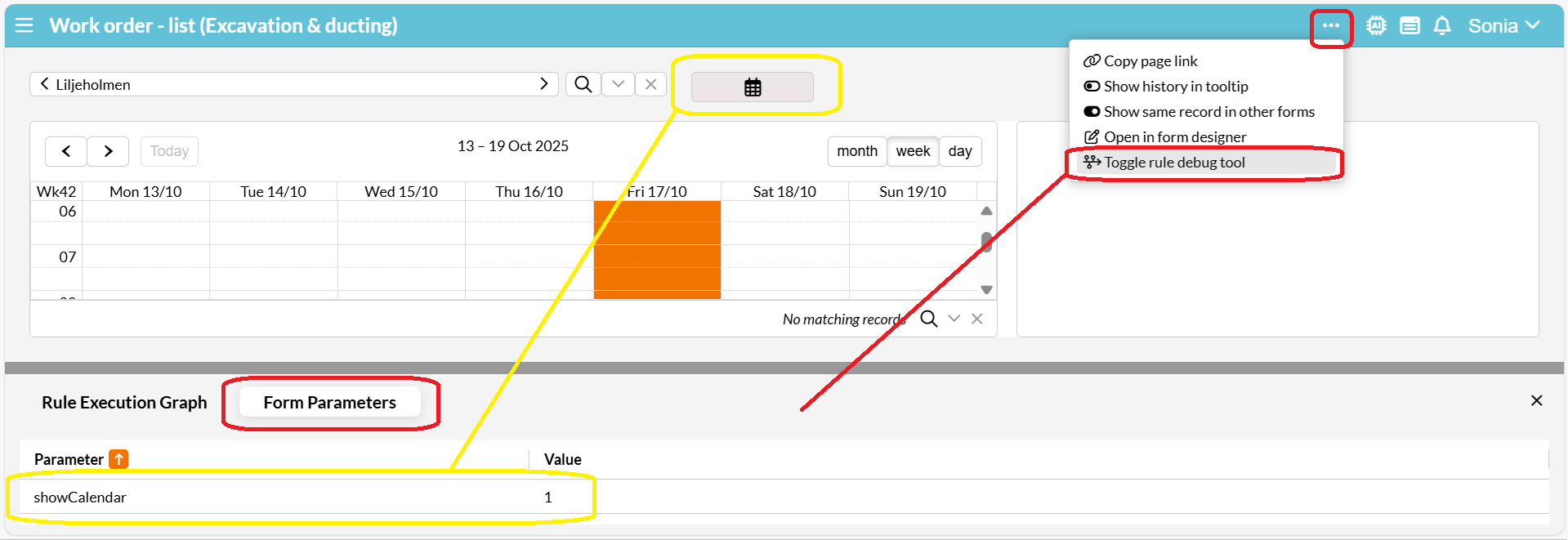
It was common practice for administrators to add temporary label components to display parameter values in a form when testing workflow configurations. That won’t be needed anymore, thanks to the new “Form Parameters” section into the Rule debug tool, where you can see all current parameter values at run time.
Markdown
The colors defined in Theme designer for your applications selected theme will also apply to formatted Note fields. A Markdown preview section has been added to Theme designer.
You can also use markdown to:
- Format your Application’s description, found in the Application preferences form, and rendered on the login page. The length limitation has also been increased from 1000 to 4000 characters.
- Format tables with visible borders, in e-mails sent by rules.
User administration’s confirmation messages
A message confirming the deletion of a user has been implemented and, if multiple actions are done at the same time, each message is displayed in a different color, in order to make each delete action easily distinguishable to the administrator.
Improved Activity log form
This administrative form, released last summer as a means to log changes from roles and form rights, has been expanded to also trace changes to User administration, Field rights, deleted fields from the Data model editor, Manage record groups and APIs.
Functionality removed
- Scan barcode: We no longer support the Scan Barcode functionality, so it has been removed from the platform. On the other hand, the Scan QR code remains available in all applications.
- Forms related to News: The forms View news, Edit news, and News category have been removed, as it is already possible to customize a form and messages with Form designer and Notifications, making News redundant.
Bugs fixed
Forms:
- The Gantt component did not support decimals in the duration of the Task, e.g., 1.5 days, if set via its context menu.
- Panel components with a toggled “hidden” property would briefly flash when a form was being rendered.
- Bold and Italic styles could not be rendered in Record name, Text, Note, Drop-down, and Number fields.
- The Record selector kept the left and right arrows enabled despite selecting the first or last record, respectively.
- An error occurred in the Map layer editor component after editing and saving a polygon, then hiding and showing the map again, making it appear as if no changes were saved.
- The Media component’s built in buttons were not fully visible for Firefox users.
- Icon components were not displaying the background color set.
- In Table sections:
- The set :hidden statement was not working for a columns’ Behavior.
- Creating a record in this section limited by another Table section, and then selecting a different parent record before saving caused the newly created record to have a relation to the wrong parent.
- The key binding Alt+s saved only the selected record, instead of saving all changed records.
- The copied value of a Link component pasted into Excel displayed the wrong value.
- Uploading a File in a column set to save automatically upon change would cause an error.
- Checkbox field:
- Did not display tooltip text on hover.
- Had no focus if using the Tab key to enter data.
- Could not render Style properties such as color for background, tick, border size and radius.
Form designer:
- Previously, empty parameters used in Behavior were interpreted as false, instead of null, meaning that a comparison like @a != @b, where @a is null and @b is not null, resulted in true. From this release on, this comparison would result in false, in an effort to be aligned with SQL where any comparison involving null yields unknown, precisely as field values are handled today. Find out more in our manual or ask Awen how to make the necessary changes in your code in case you happen to have this inconsistency.
- Double-clicking Save after making a copy of a form caused the new copy to be duplicated, followed by an error message.
- The root of the form could store hidden filters if selected together with other components by mistake, leading to misconfigurations.
- The context menu of a selected component was popping up outside of the given dimensions of the selection.
- The Select rectangle tool was not consistent in which components were selected.
- A validation error would appear when using the IQL function openUrl in combination with a variable, set to a Link field upon executing the Run on click property.
- If a fixed filter included trailing comments using ‘– ’, the rendered form was unable to load the data.
- In the Open form window, clicking a row after sorting by any field other than the form name, would automatically sort by form name.
- Saving a filter for multiple selected components with different sources could be validated without any warning of misconfiguration.
- The createFormUrl function was not suggested on Call procedure when typing a query in Run on click or Run on change for a form component.
- The properties Border (width/radius) and Font size incorrectly validated non-integer input.
- Caption for IQL Bar and Pie charts would not be displayed when Y-axis fields were set. For example,
if @series = 'n/a' then
   set :caption = ‘Not available’
end
Reports:
- A technical error message was shown when trying to run a report via form link without access rights. Now the message is descriptive for user benefit.
Rules:
- In Rules editor:
- Saving a style dependent on a Checkbox value resulted in empty operators and colors.
- The Rules editor was missing its form title at the top bar.
- In Rules manager:
- The Sender field was displayed while configuring the rule action “Send a notification”, even though this field is exclusive to the “Send an SMS” action.
- The parseJson() function did not support null as a value of the JSON field.
- The median function could not be executed.
- The Edit section did not render with the application’s Theme style.
- Variables defined with the parseJson() function could not be used in comparisons.
Mobile:
- The Record filter could not be scrolled in horizontal view for handheld devices running iOS.
- The Apply filter button in columns of Table sections appeared enabled at all times.
Other:
- An error message was displayed in Theme designer if an empty theme was saved.
- In Application preferences, some settings such as Default language, Default form, Theme, etc, had no options to display.
- The Configuration Bundles form did not support exporting a form containing an IQL Chart component.
- The Message log form showed the Created and Updated dates in the wrong time zone.
- It was not possible to fetch the Record id with IQL, as all references to Record id in filters, forms and rules returned the Record name.
- The parseJson() function could not handle double quotes in keys, affecting Behavior, Run on change, Run on click and Run IQL. We have changed this to be compliant with RFC 9535; in practice, this means that parsejson(@json, ‘length’) will not work to extract the length of an array in JSON, as it is nonstandard.
- Attempting to send a Notification to a Role with no members caused an error message.
- The Manage record groups form selected the first table available by default, causing administrators to set unintended rights. Now, the form does not load any rights until a table is selected by the user.
Planned future changes
Classic forms will be removed in our Summer release 2026. If they are still part of your current application’s configuration, we’ll contact you shortly to help you convert them to our latest version of forms.